Using Ledger Hardware Wallet
This guide describes how to set up your Ledger hardware wallet for managing your TAO on the Bittensor network.
Requirements
Set up your Ledger hardware wallet as per Ledger instructions.
This guide assumes that you have a Ledger device and the Ledger Live app installed already.
Common Steps
- Connect Ledger device to your computer with Ledger Live installed.
- Open Ledger Live app > My Ledger > Unlock Ledger > Approve Ledger Live.
- Install the Polkadot (DOT) app from Ledger Live.
- To manage your TAO from your Ledger hardware wallet, you must install a wallet app that supports TAO and also supports the Ledger hardware wallet. Talisman, Nova Wallet, and Subwallet apps satisfy this condition. Install any of these wallet apps, and make sure you have configured these wallet apps to also use the Bittensor network. This is required for either transferring TAO using your Ledger, or finding the correct address to receive TAO on your Ledger device.
Proceed only after you successfully ran the above steps. The rest of this guide is described using Talisman wallet app.
Crucible Wallet Set Up
Connect Ledger device to Crucible Wallet
To ensure the connection to Crucible Wallet goes smoothly, make sure you have:
A. Plugged in your Ledger device into your computer
B. Unlocked your device by entering your PIN
C. Opened the Polkadot app on your Ledger
Once you have completed the above, follow the steps below to import your Ledger wallet.
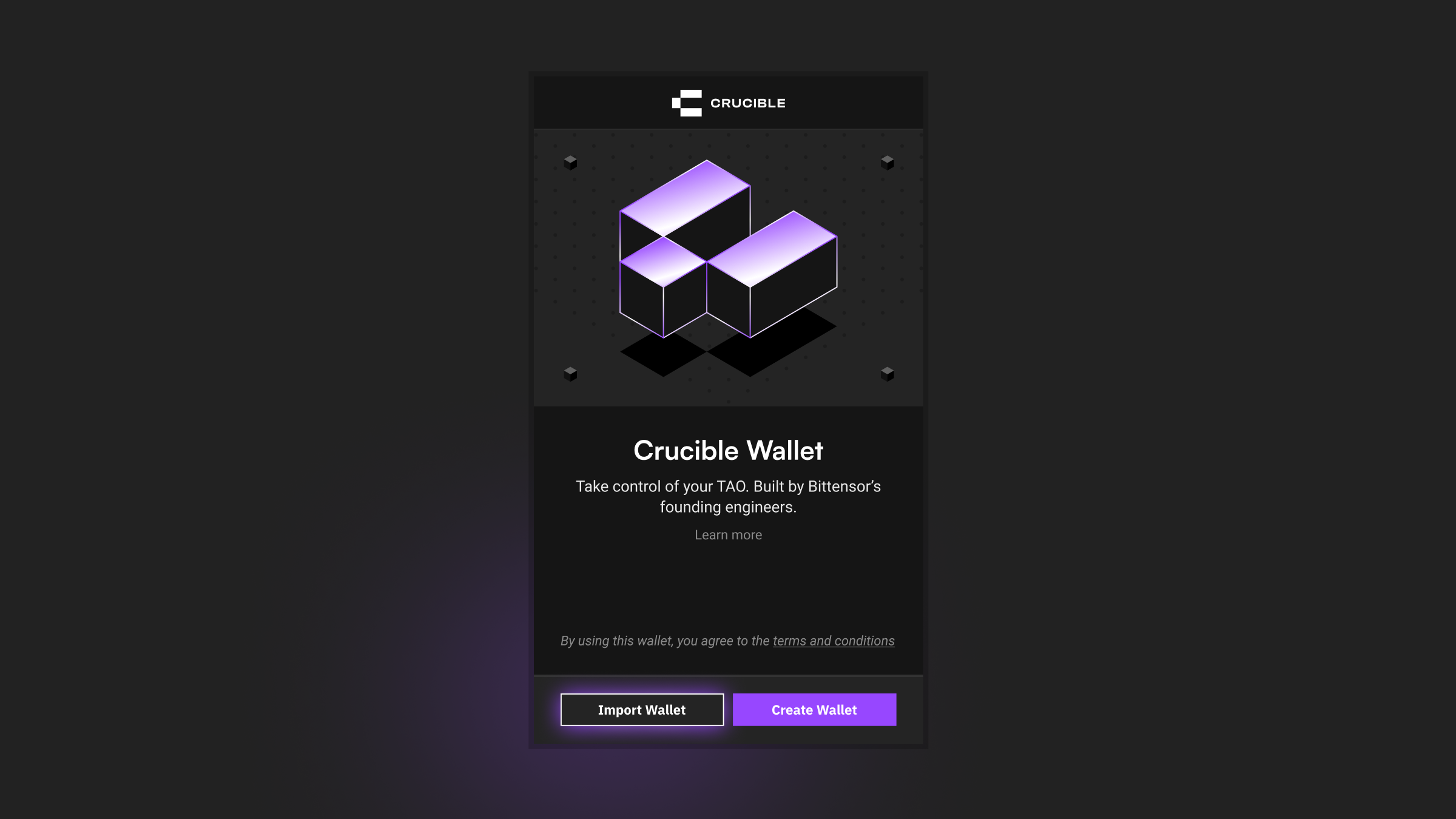
1. Open the Crucible Wallet extension and click on Import Wallet
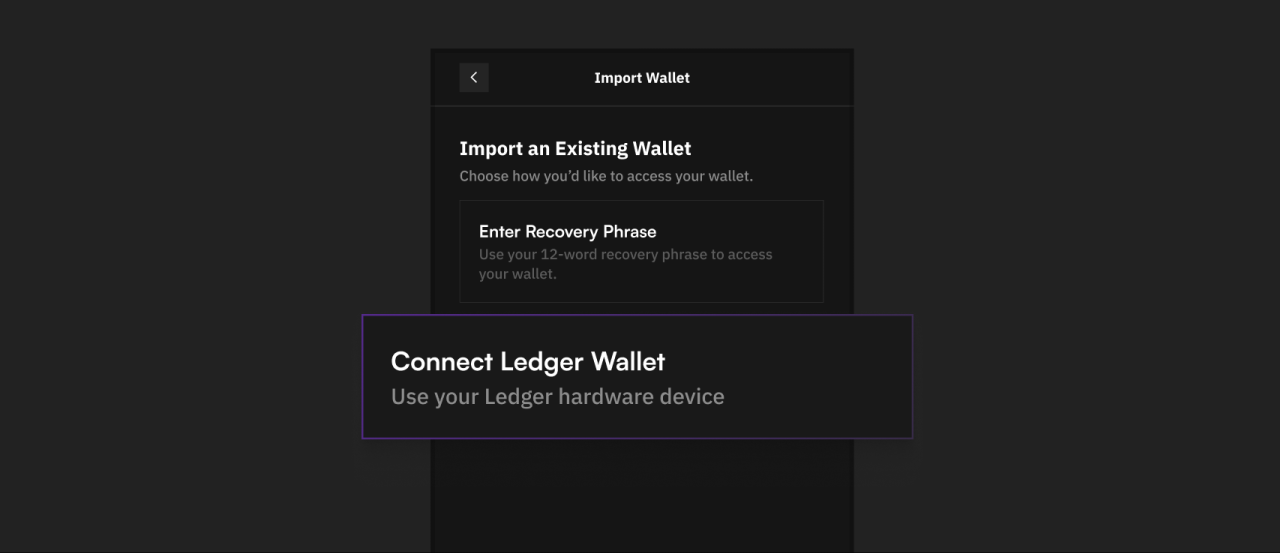
2. Click Connect Ledger Wallet
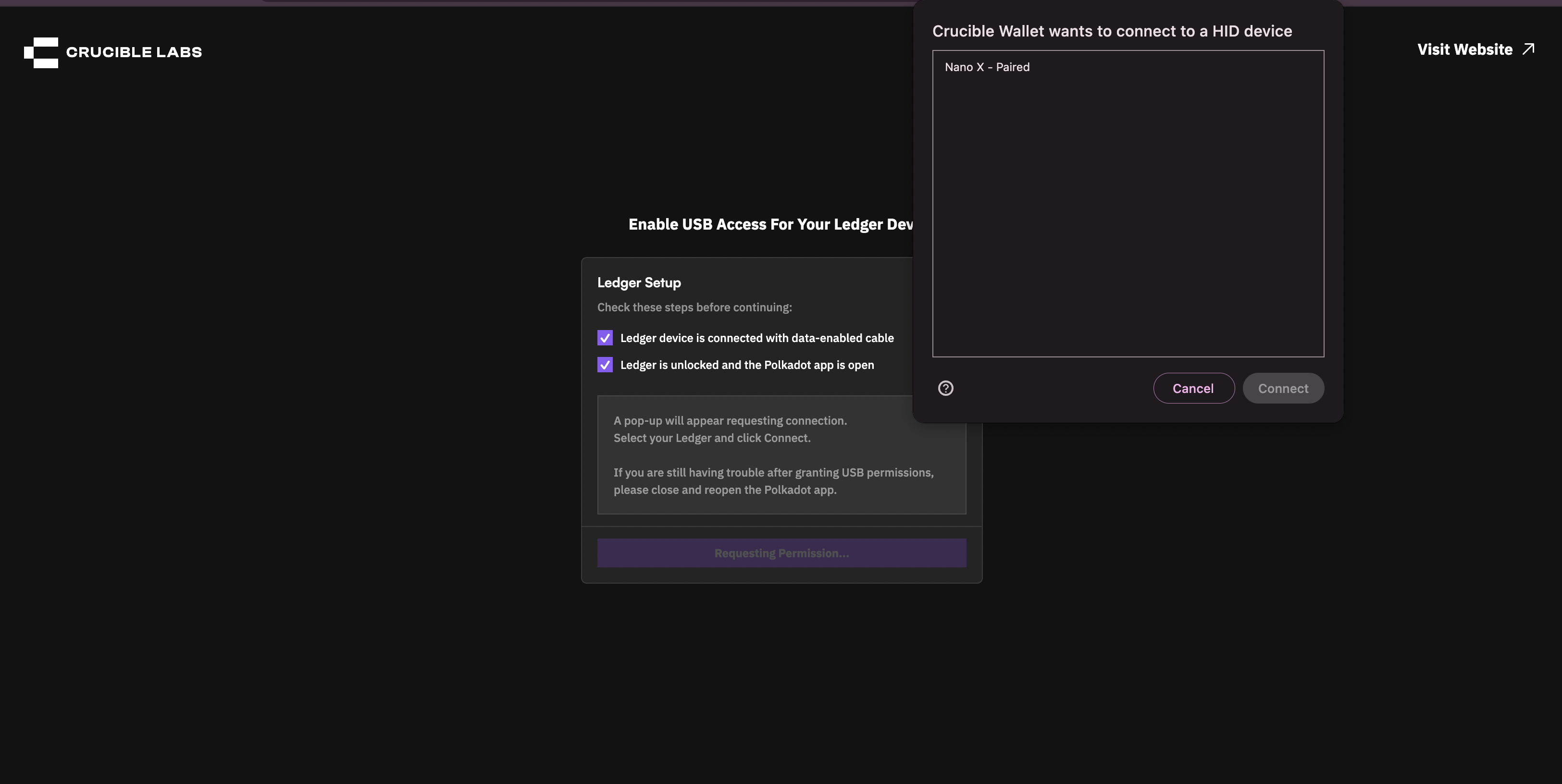
3. Allow USB permissions
You will be directed to a webpage where you can allow USB permissions. This ensures your Ledger device is discoverable by the Crucible Wallet. When you click “Connect Wallet” the Crucible Wallet will grab your public key and ask you to give a name to your wallet.
Once named, your Ledger is connected — you can now use Crucible Wallet with hardware-level security.
Stake to Core Alpha
To stake to Core Alpha (automatically reinvests root yield into subnets), click on Stake to Core Alpha.
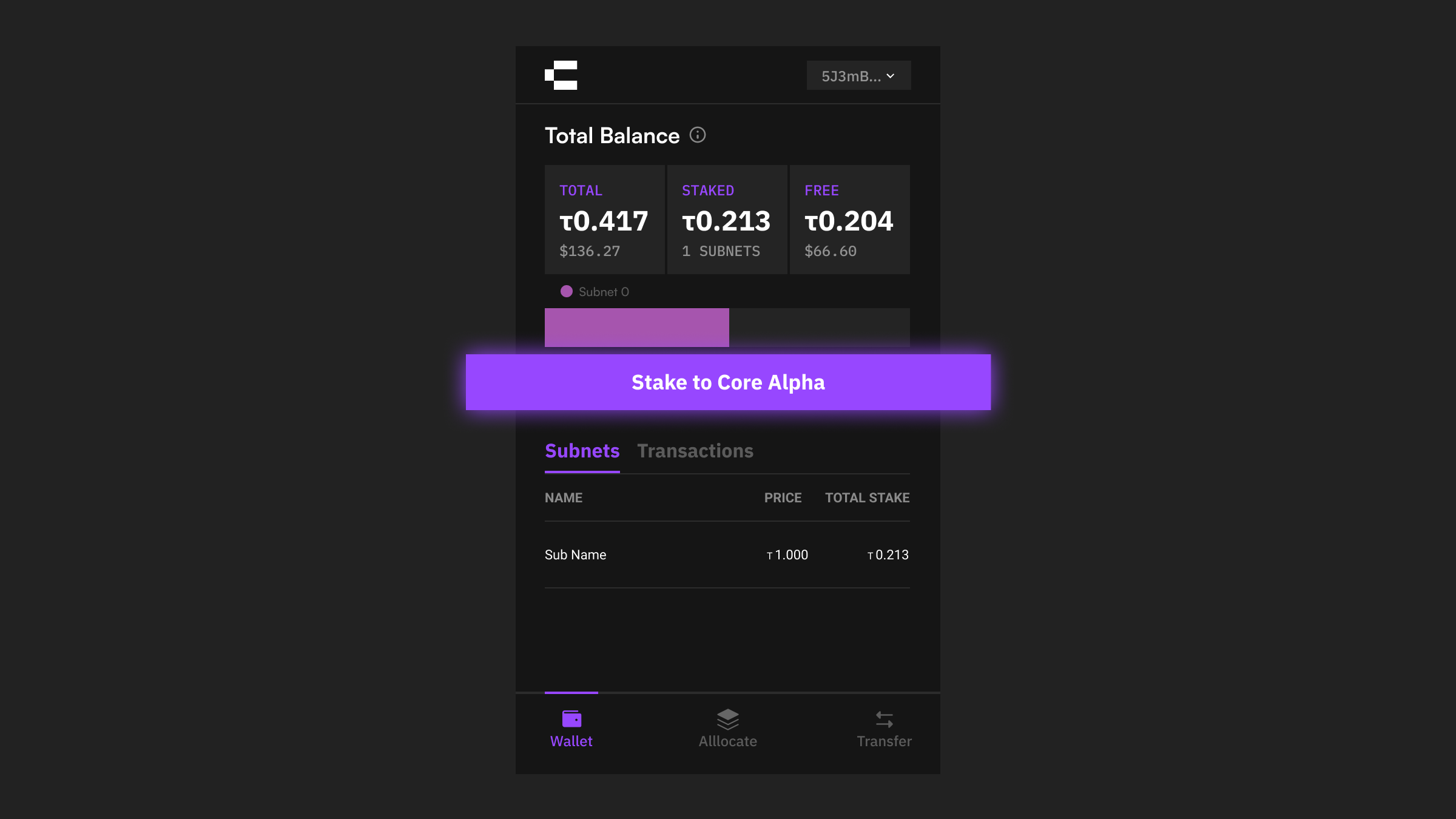
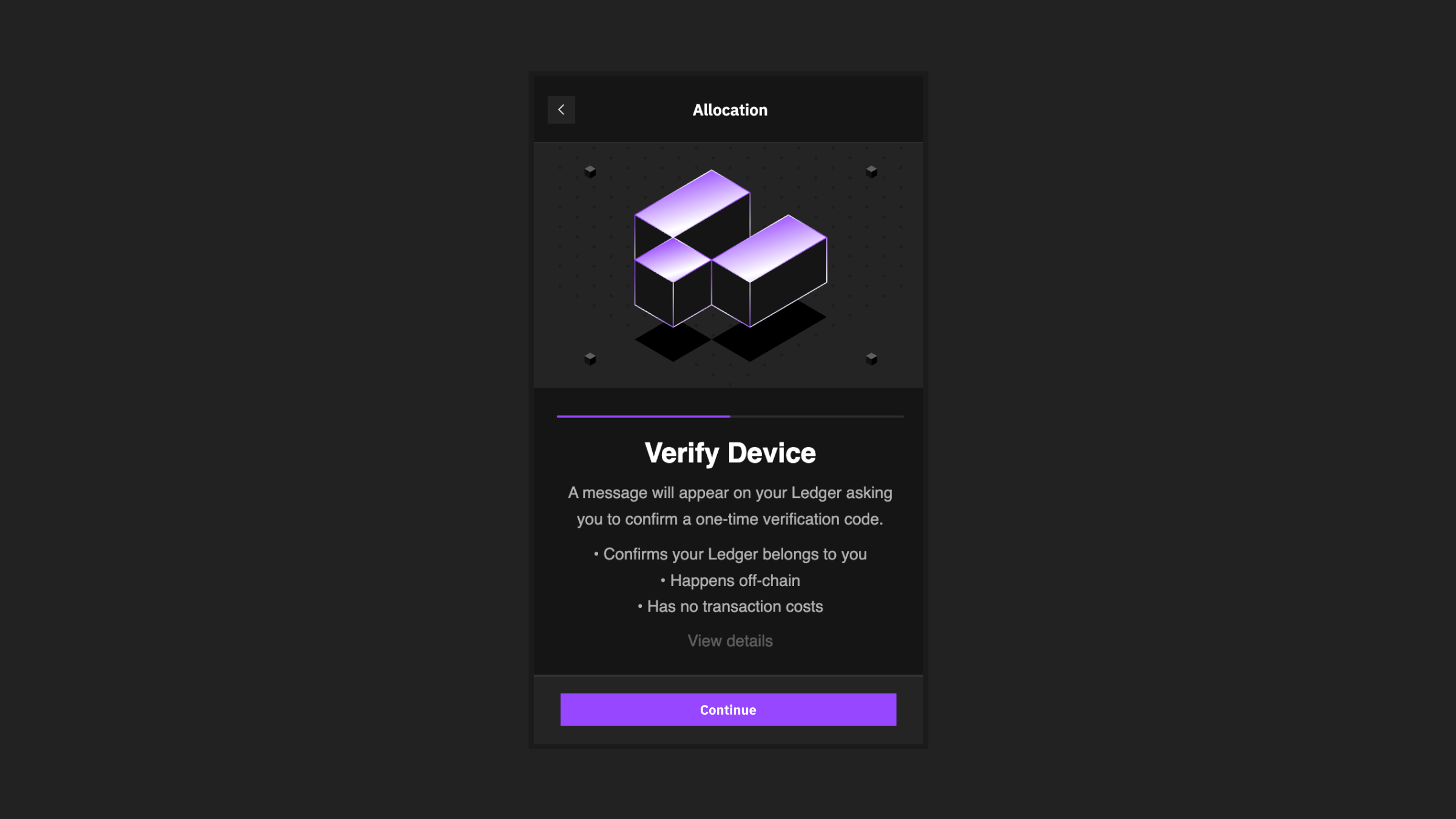
You will first need to verify that you own your ledger device by signing a challange. This challange is free, never sent to the blockchain and is use donly to authenticate you with the Crucible Labs server.

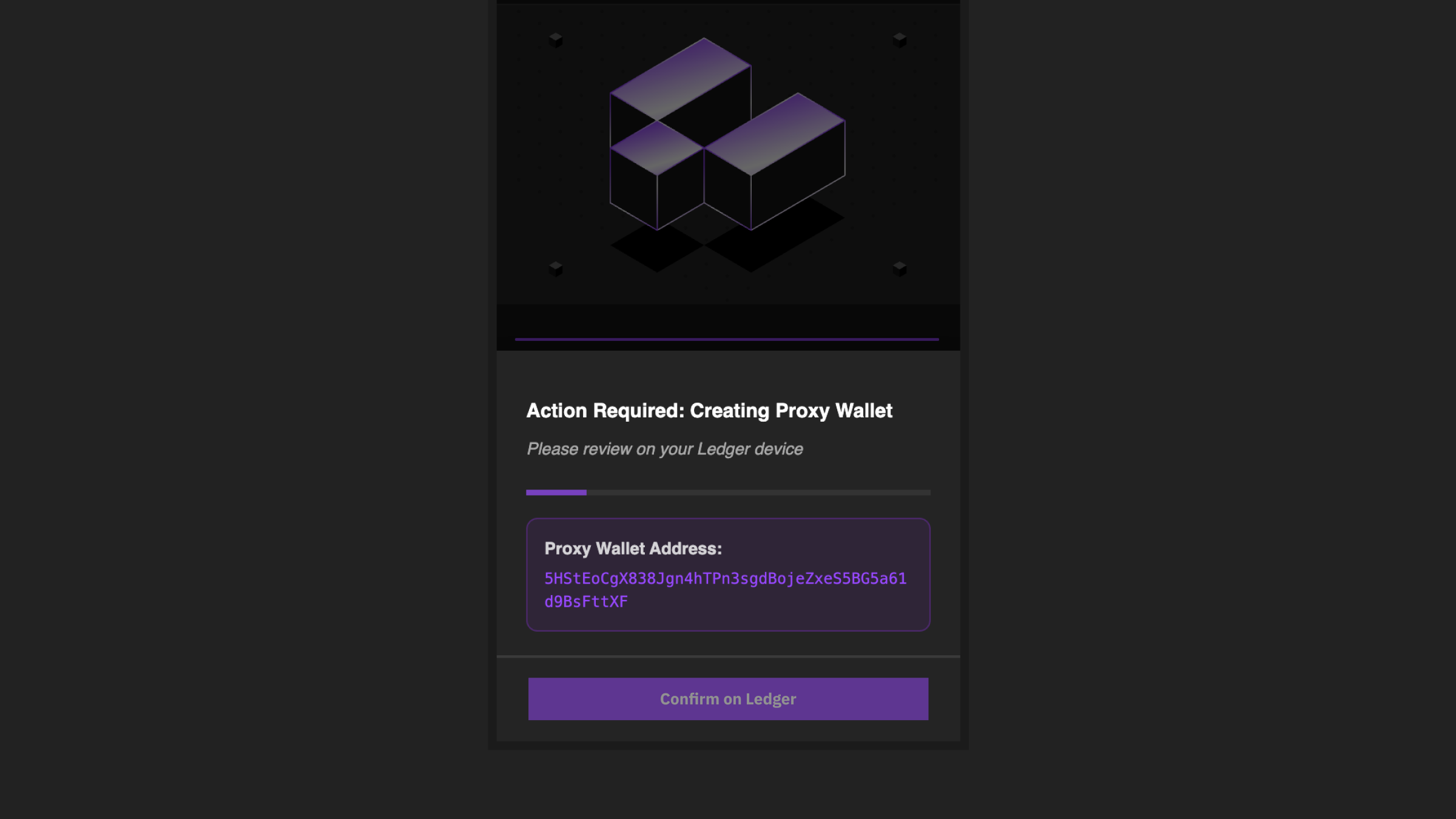
You will then need to authorize the creation of a proxy wallet and fund said proxy wallet with 0.1 TAO in 2 seperate transactions. This proxy wallet will complete the unstaking yield from root and staking said yield into subnets.
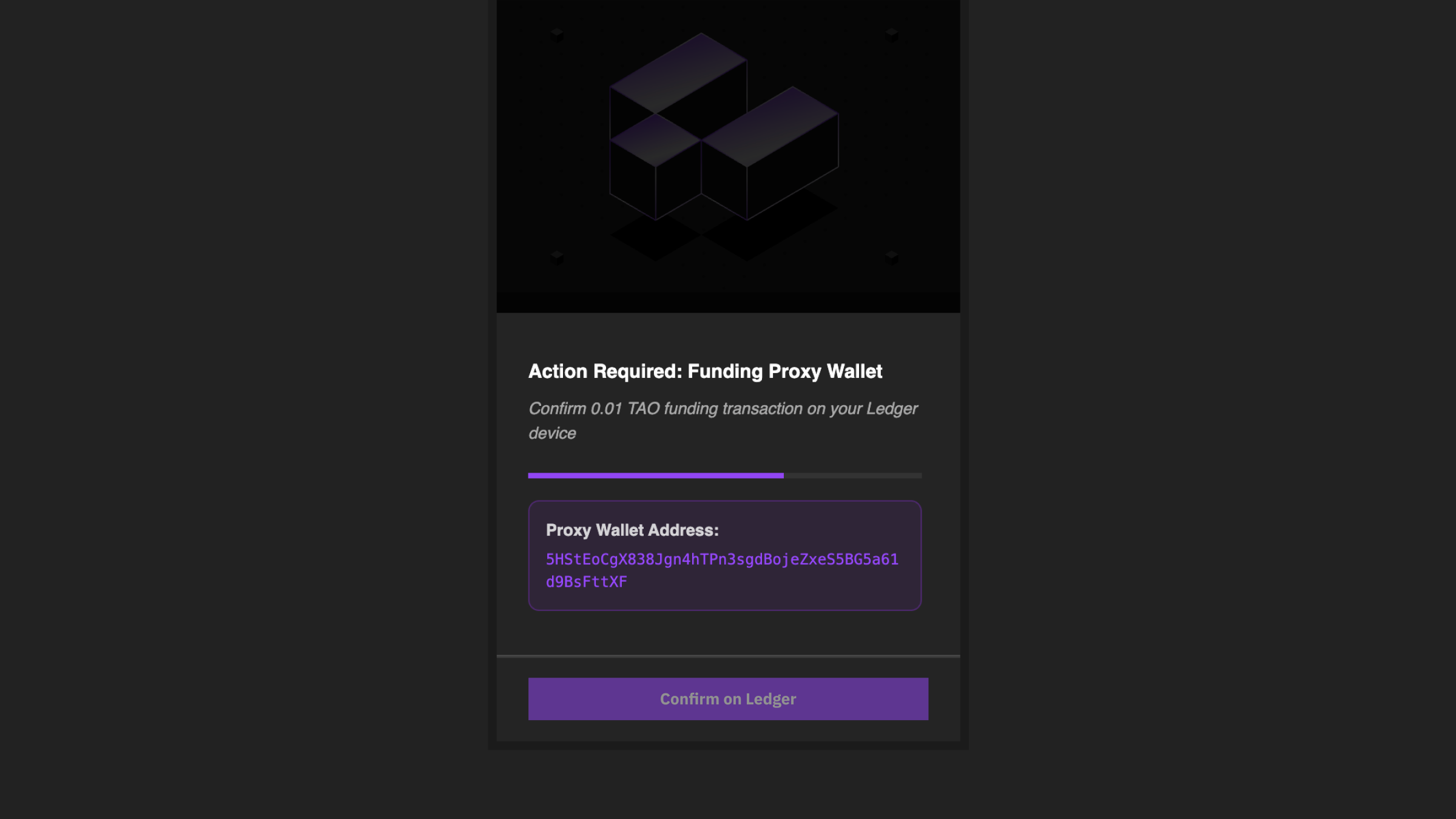
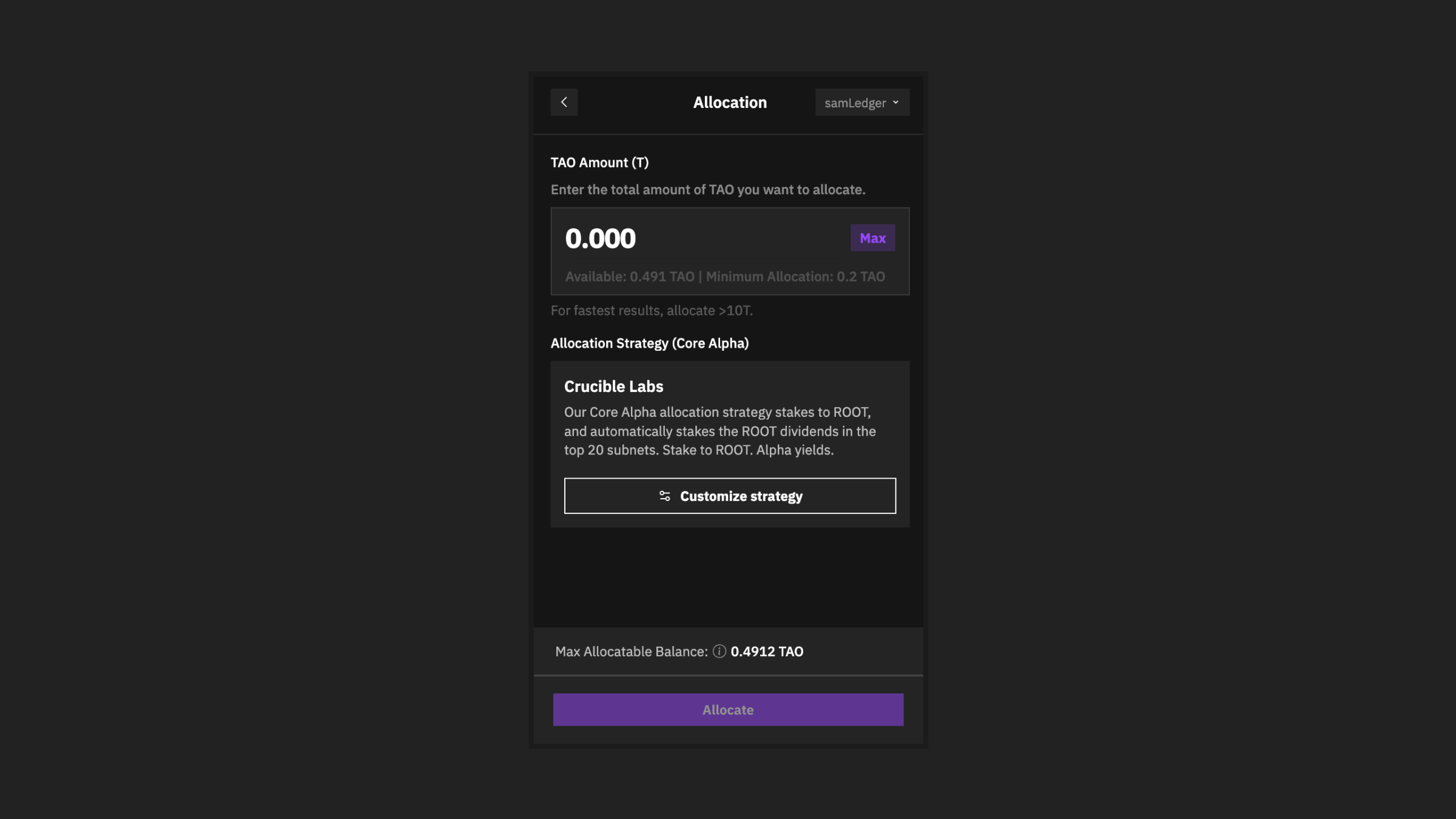
After creating and funding the proxy wallet, you will be directed to the allocation screen where you can enter the amount you wish to allocate, customize your allocation strategy and sign the final staking transaction.

Manual Staking to Subnets
To manually stake to a subnet click the Allocate button on the bottom of the dashboard screen.Select Manual Stake on the following screen to then open a list of all subnets.
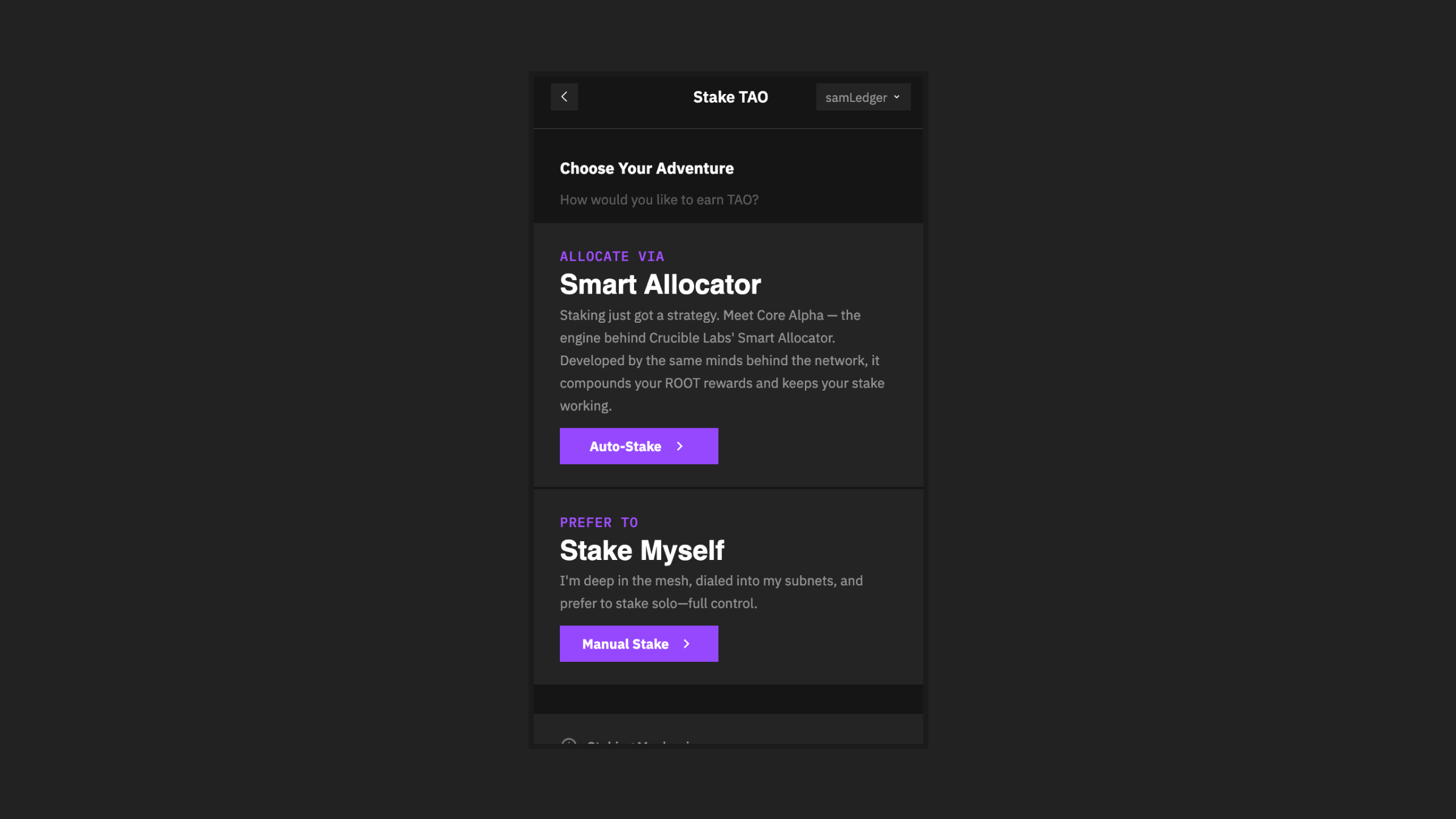
After selecting the subnet, you'll be directed to the allocation page where you to enter in the amount you wish to allocate and click Allocate to send the transaction to your Ledger device.

Transfering TAO
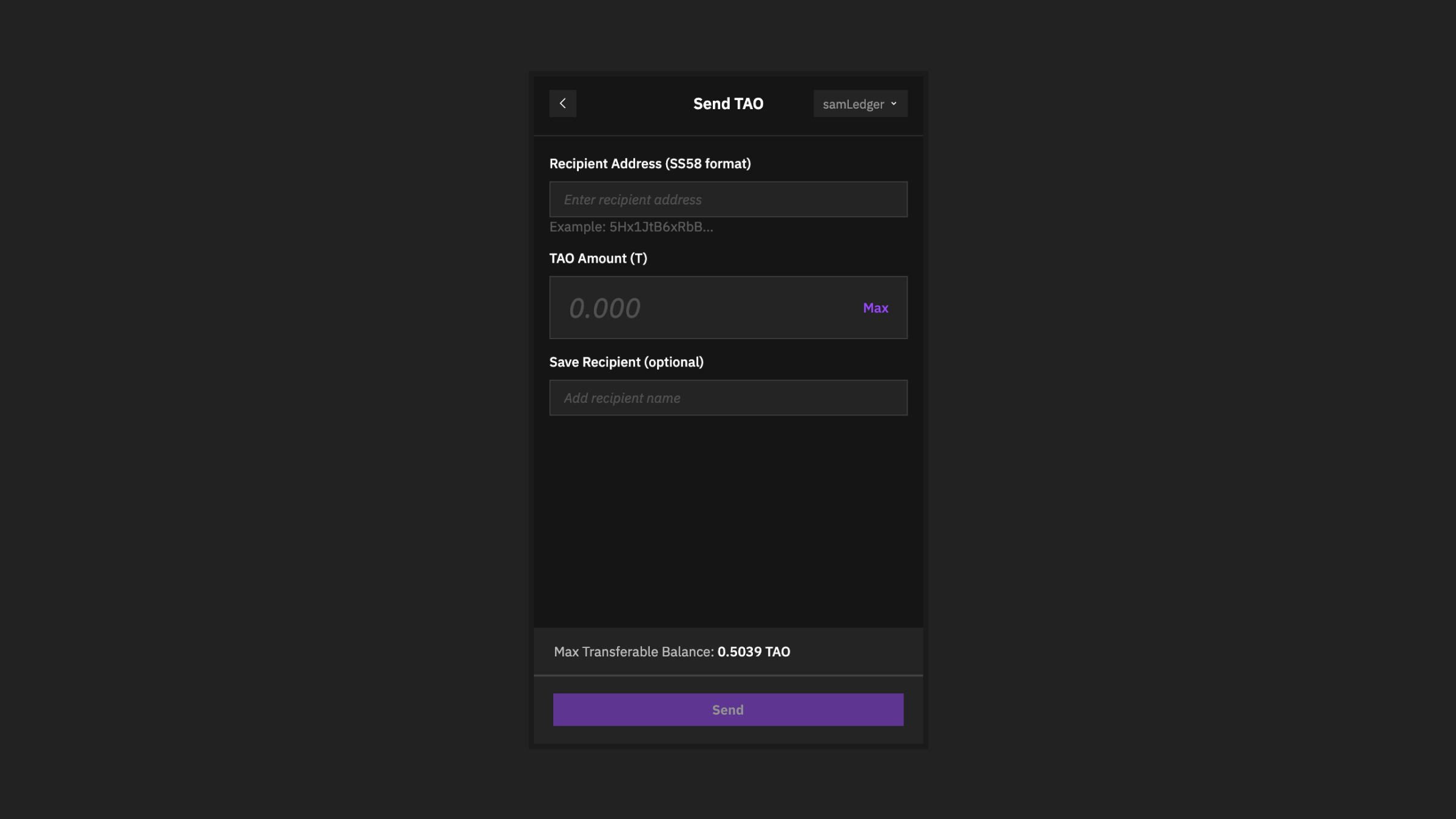
To transfer TAO from your Ledger wallet, click on the transfer button in the bottom right corner of the Crucible Wallet.
Enter the recipiant address and amount you wish to transfer, then confirm the transactions, on your Ledger Device.

Talisman Wallet Set Up
Step 1. Connect Talisman app to Ledger device
-
Connect Ledger hardware wallet device to your computer.
-
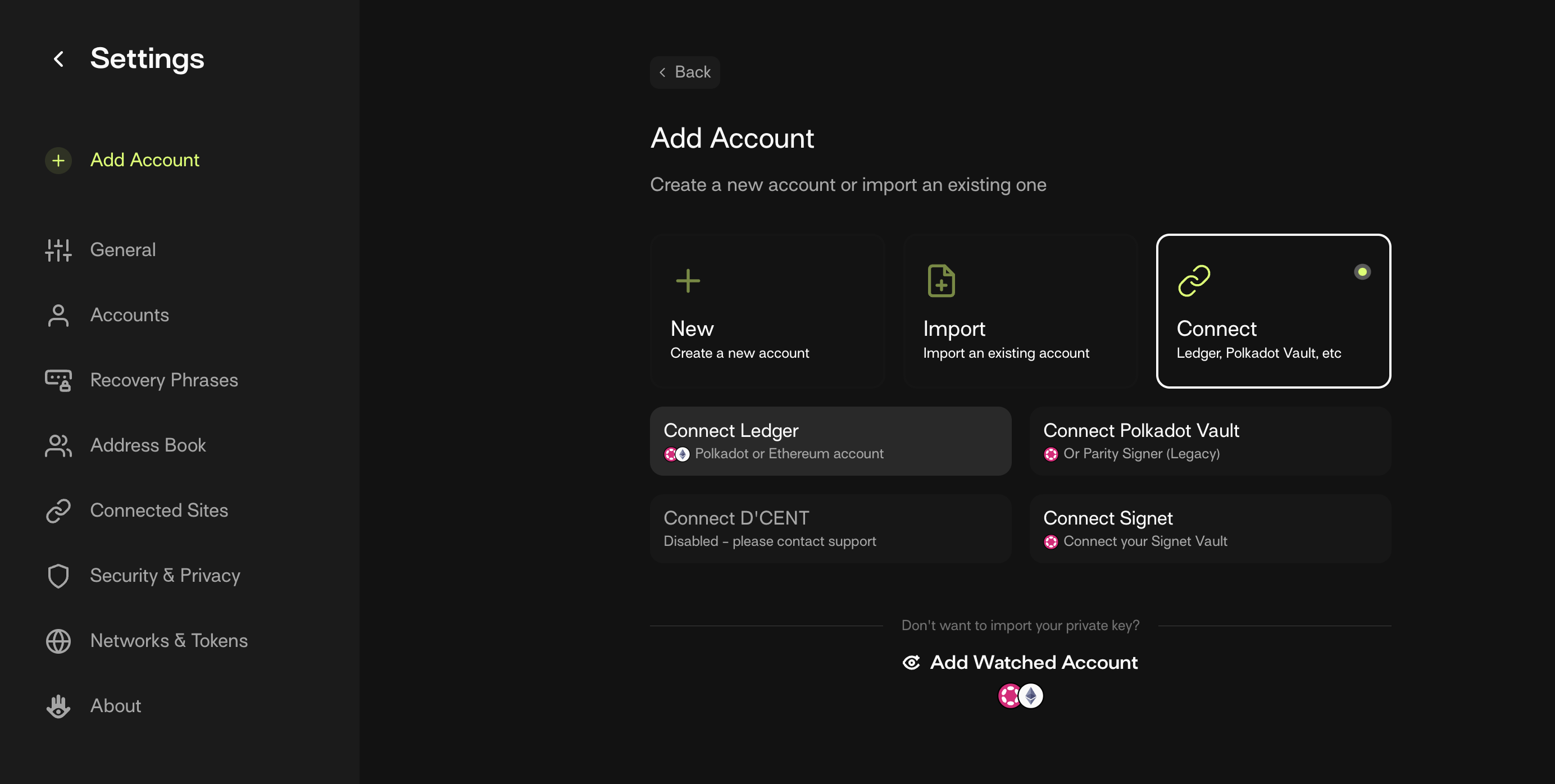
Open Talisman wallet app and select Add Account.
-
Select Connect and choose Connect Ledger.
-
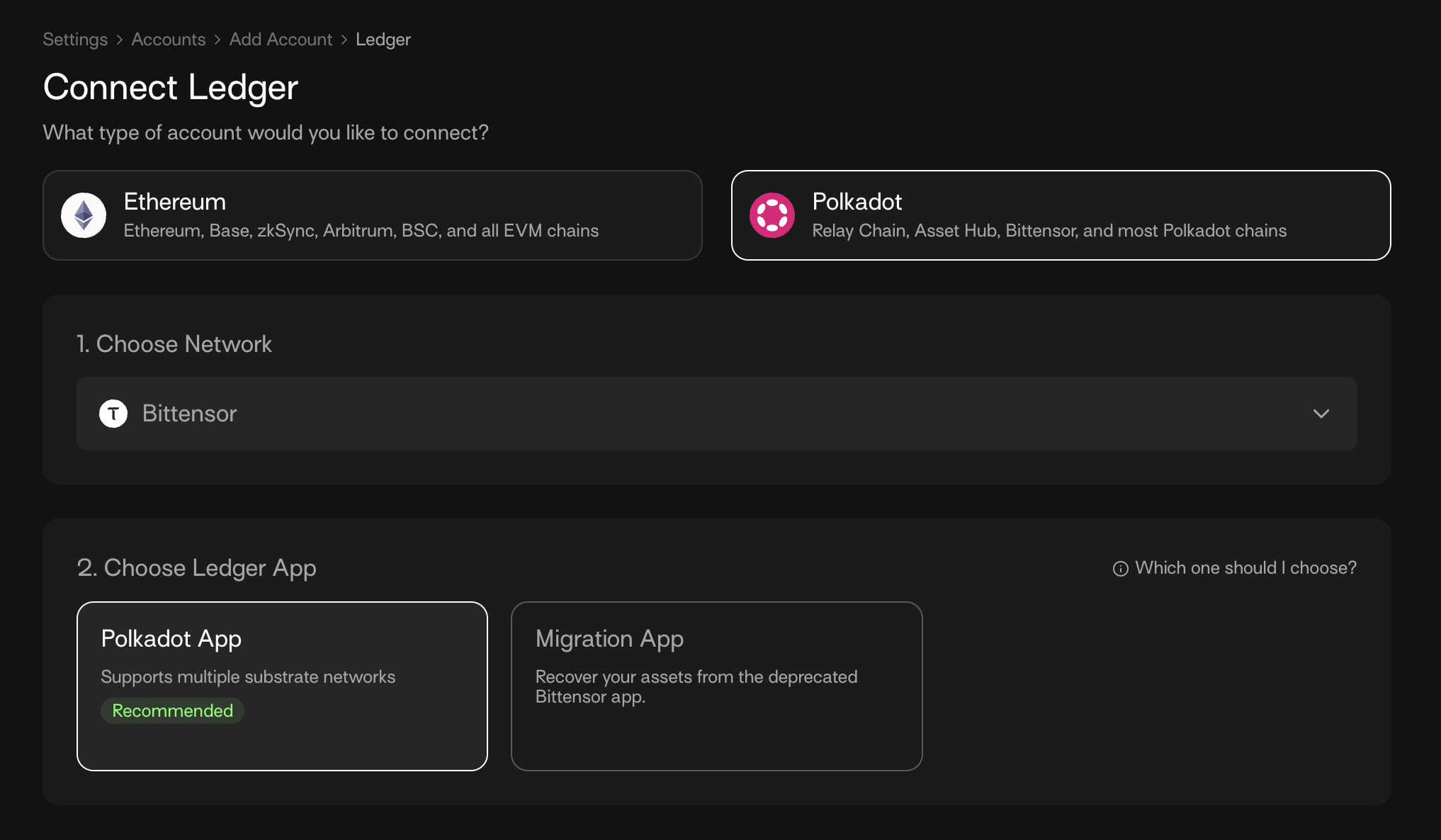
Select Polkadot. Then in the Choose Network drop-down select Bittensor as the network, and in the Choose Ledger App section select Polkadot App.
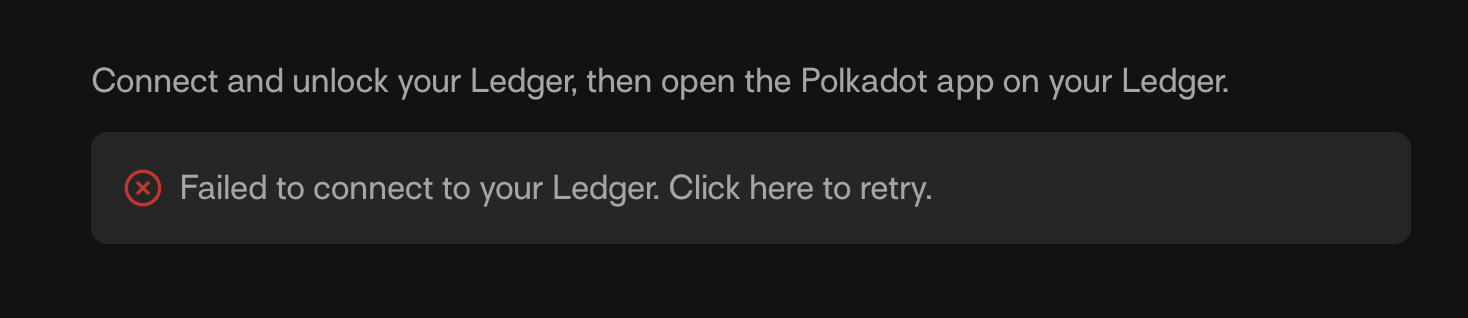
Failed to connect?If you see "Failed to connect to your Ledger" message, then unlock your Ledger device and open the Polkadot app, then click "Retry".
-
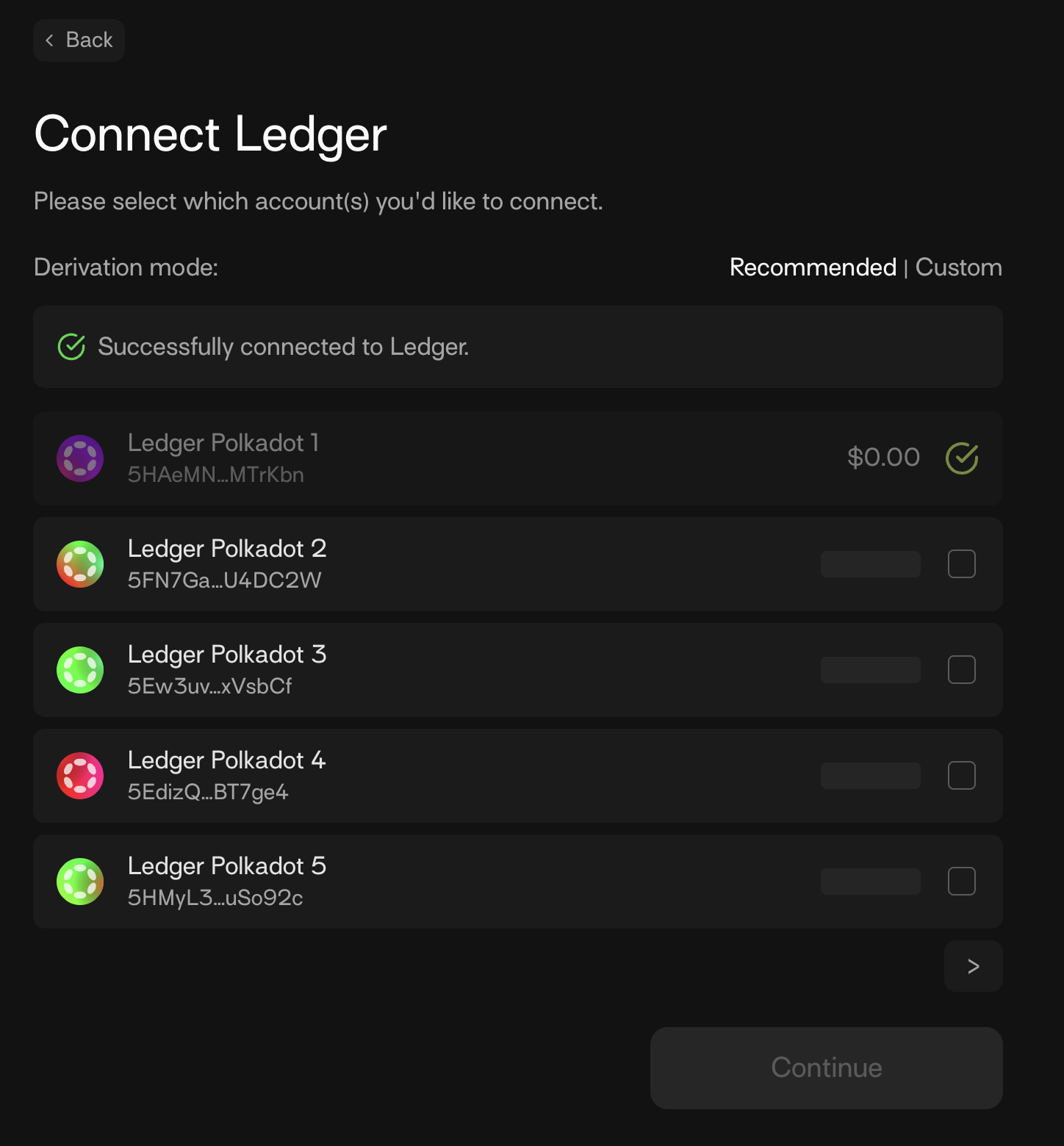
When the above steps are complete, then you have successfully connected your Ledger hardware wallet device to the Polkadot app. Next, choose the Ledger hardware wallet addresses you would like to import to the Talisman wallet. Your Ledger hardware wallet device is now ready to be used with the Talisman Wallet app.
The below screenshot shows multiple addresses in the Ledger hardware wallet device.
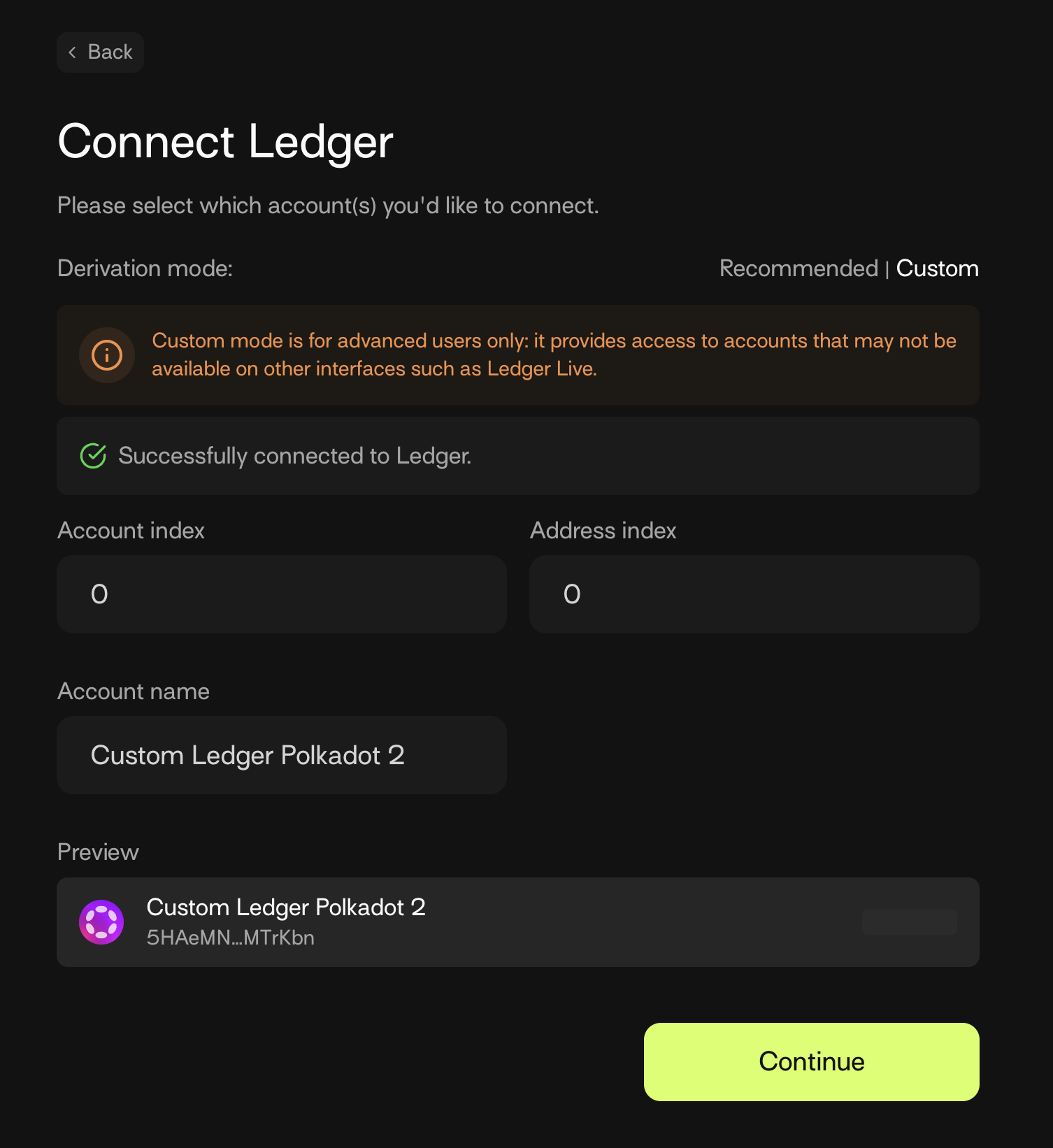
Failed to connect?If you had transferred TAO to the Ledger device already, then select Custom and modify the Account index to 0. This will then show you the Ledger hardware wallet address to which you had transferred your TAO previously. You may try other values if needed.
Step 2. Transfer TAO from Ledger hardware wallet
To transfer TAO from your connected Ledger hardware wallet, execute the following steps:
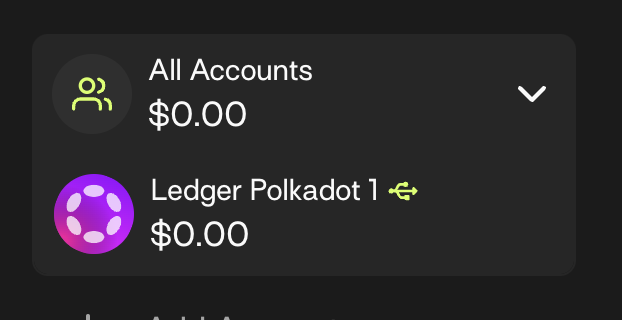
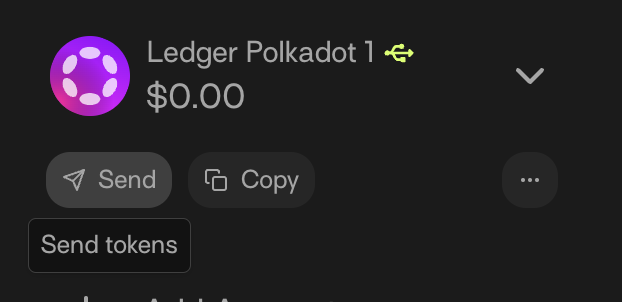
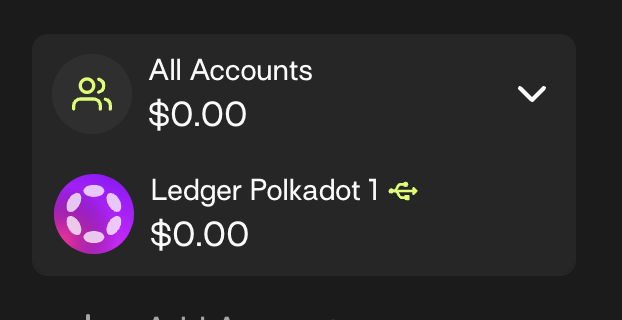
- Select the Ledger account from the All Accounts dropdown.
- Select Send to send from the TAO address to another wallet address.
-
Select Bittensor from the list of networks.
-
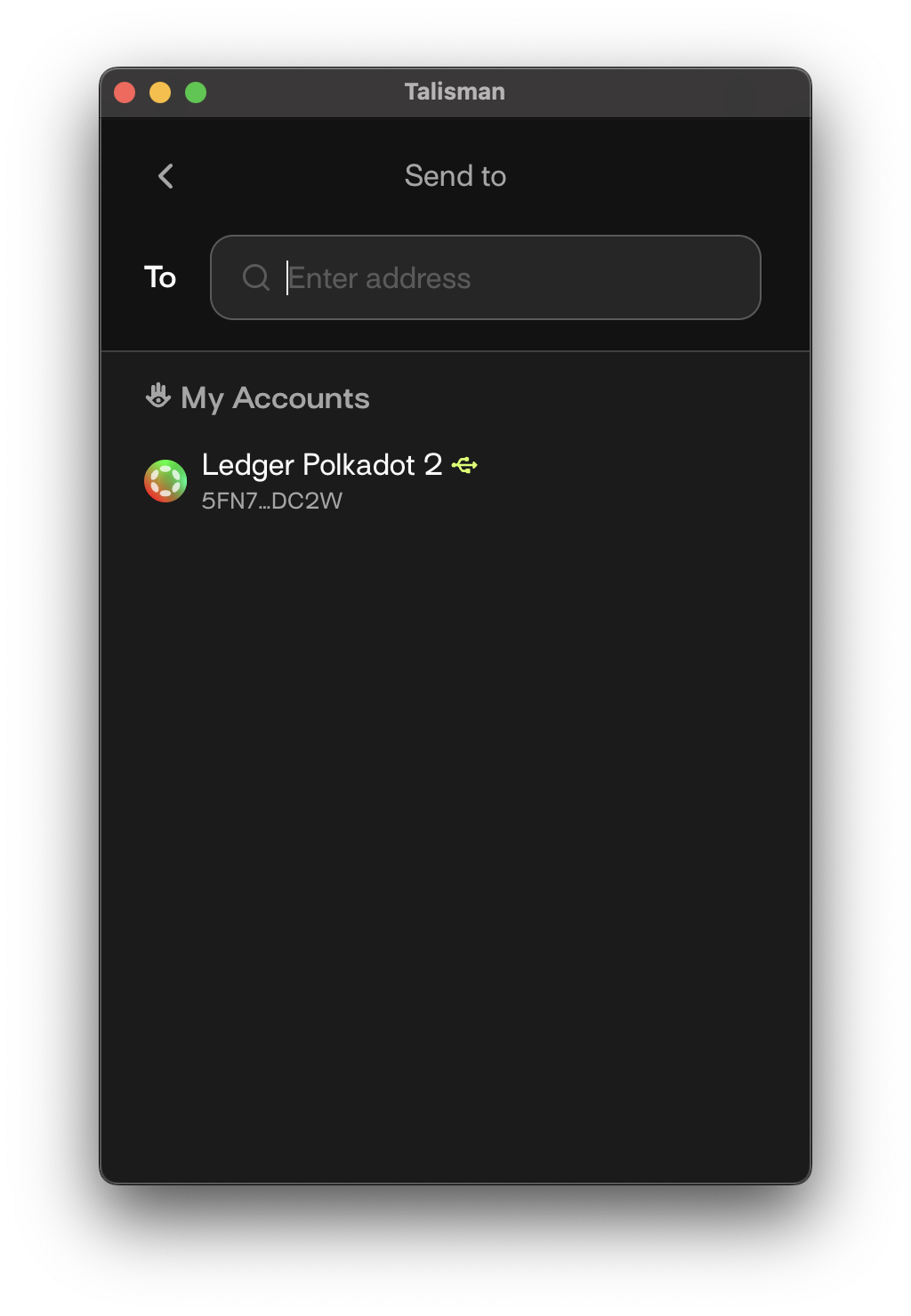
Input the destination address. This destination address is any TAO wallet address that is configured with the Bittensor network. Paste the destination address into the To field, as shown in the below screenshot.
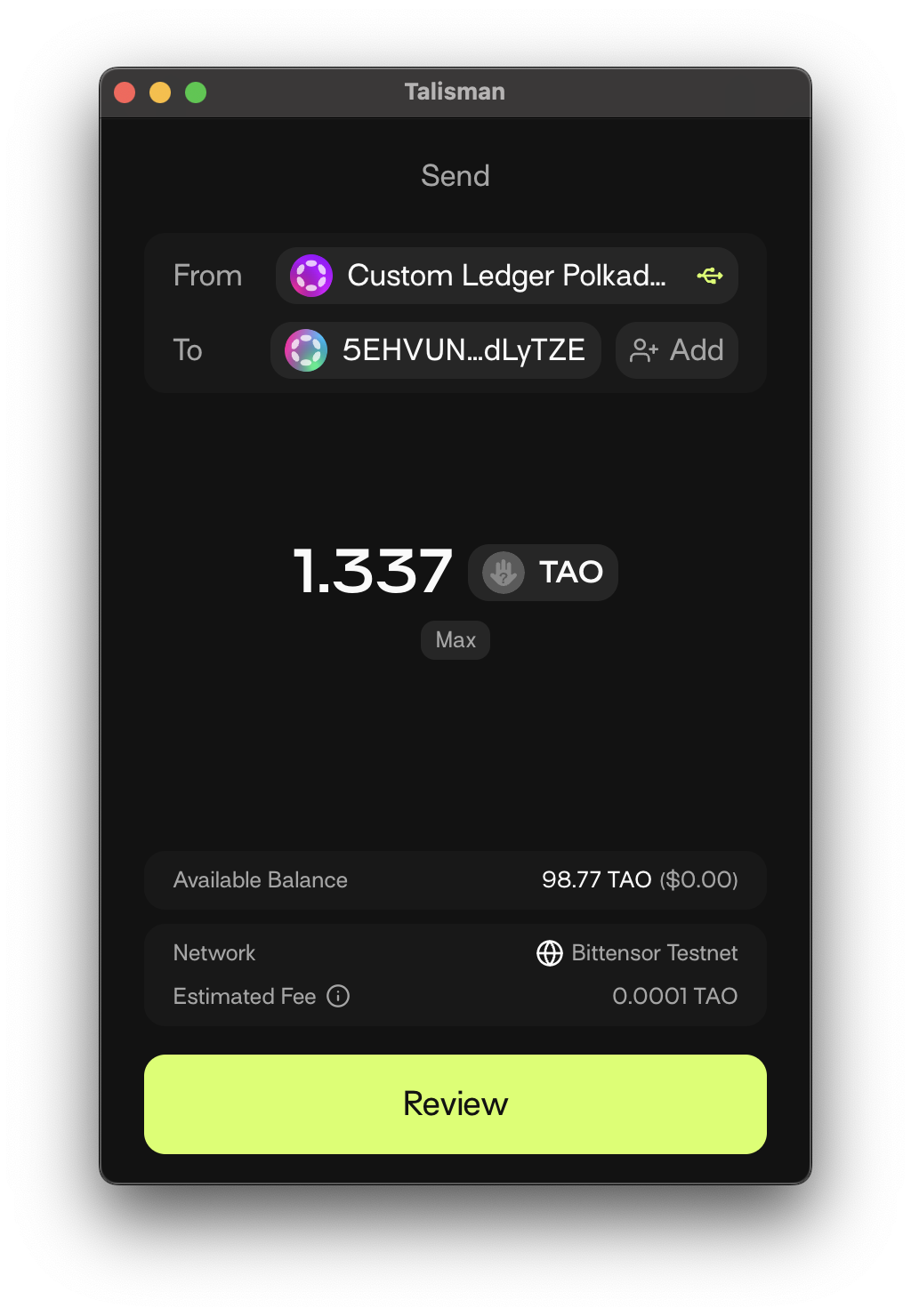
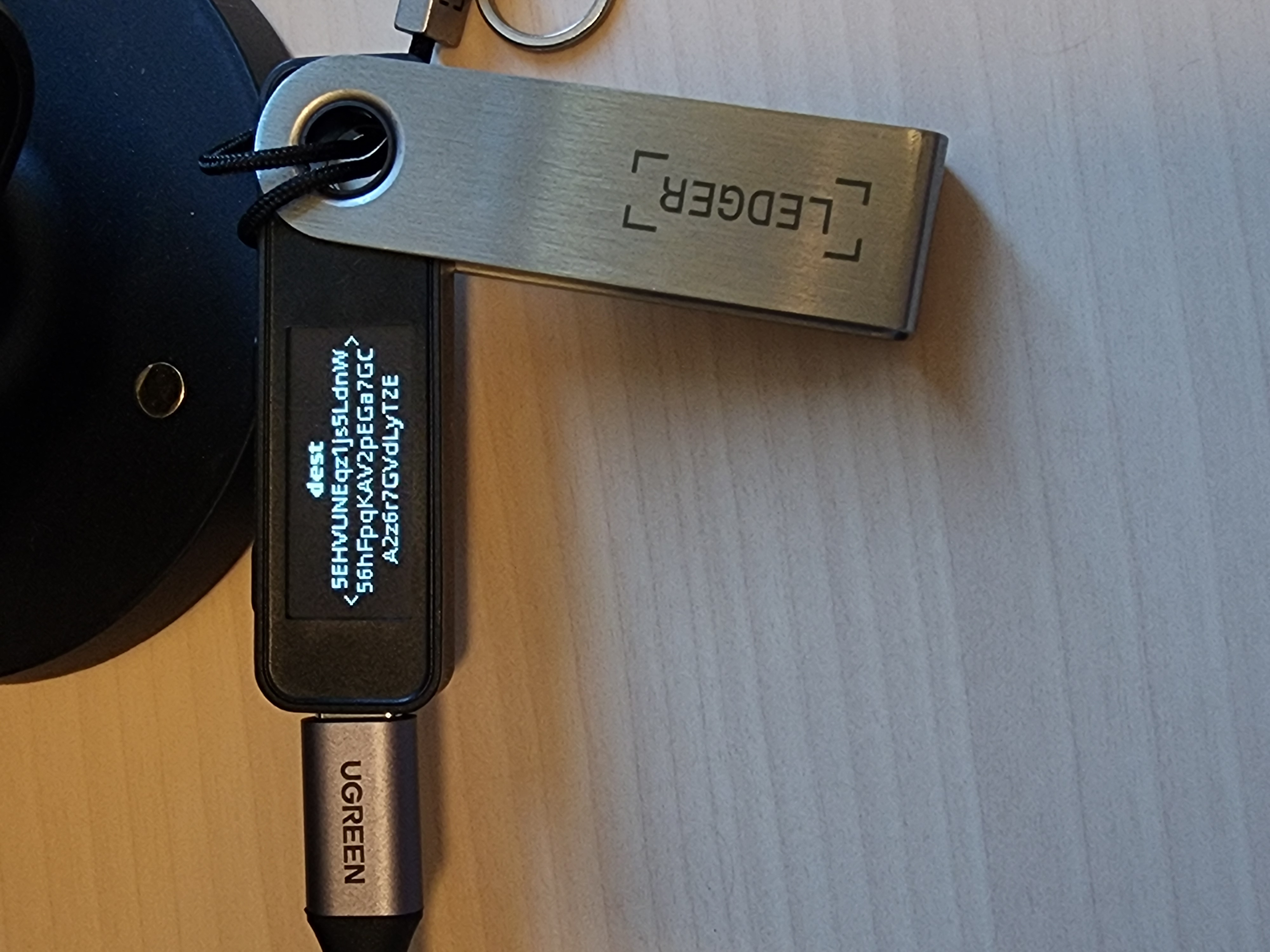
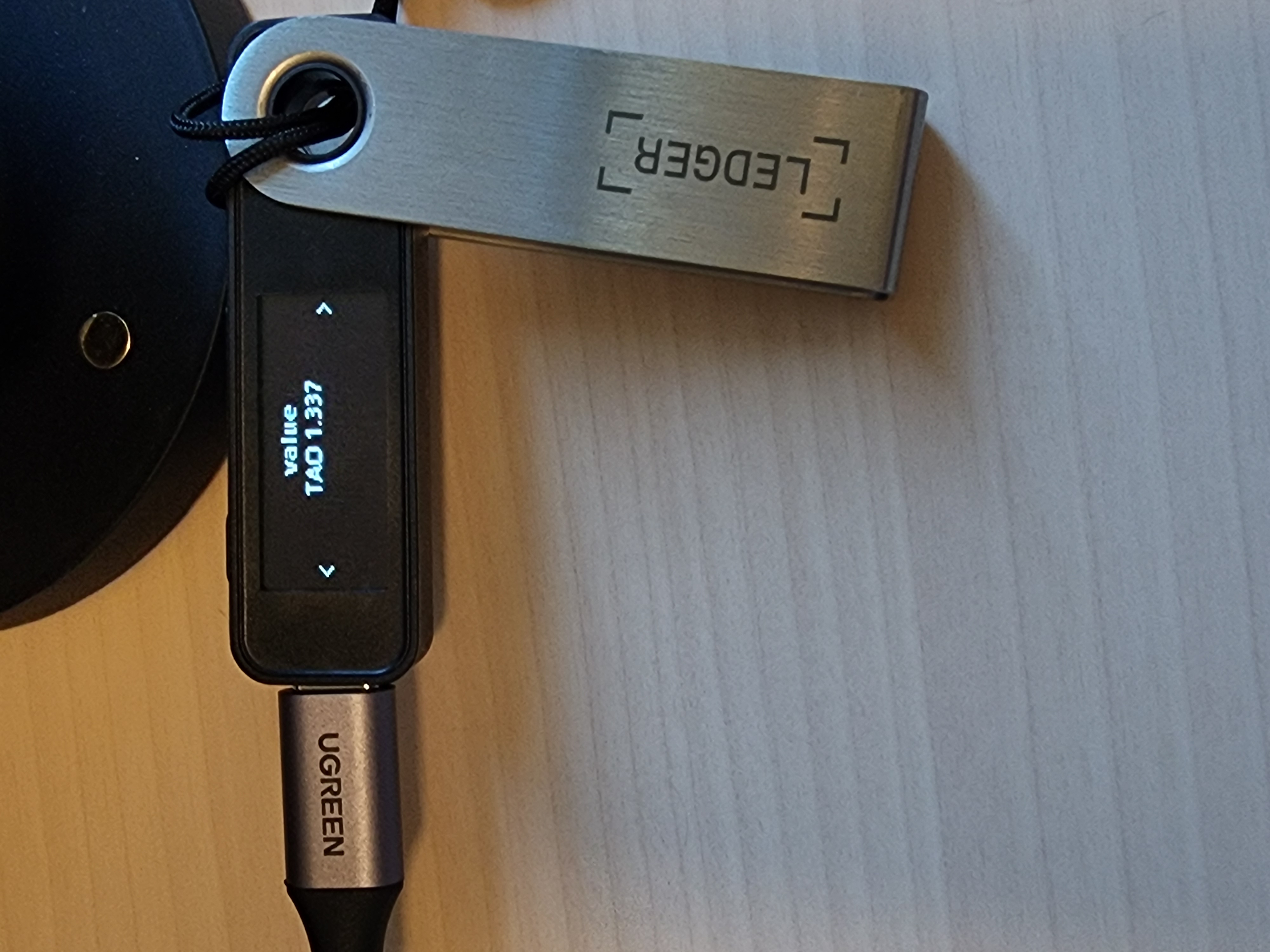
- Input the transaction amount and Review the transaction. In the below screenshot, an example transfer screen for sending 1.337 TAO from the connected Ledger hardware wallet device to a destination address that starts with
5EHVUN...is shown.
- Review the transaction and press Approve on Ledger.
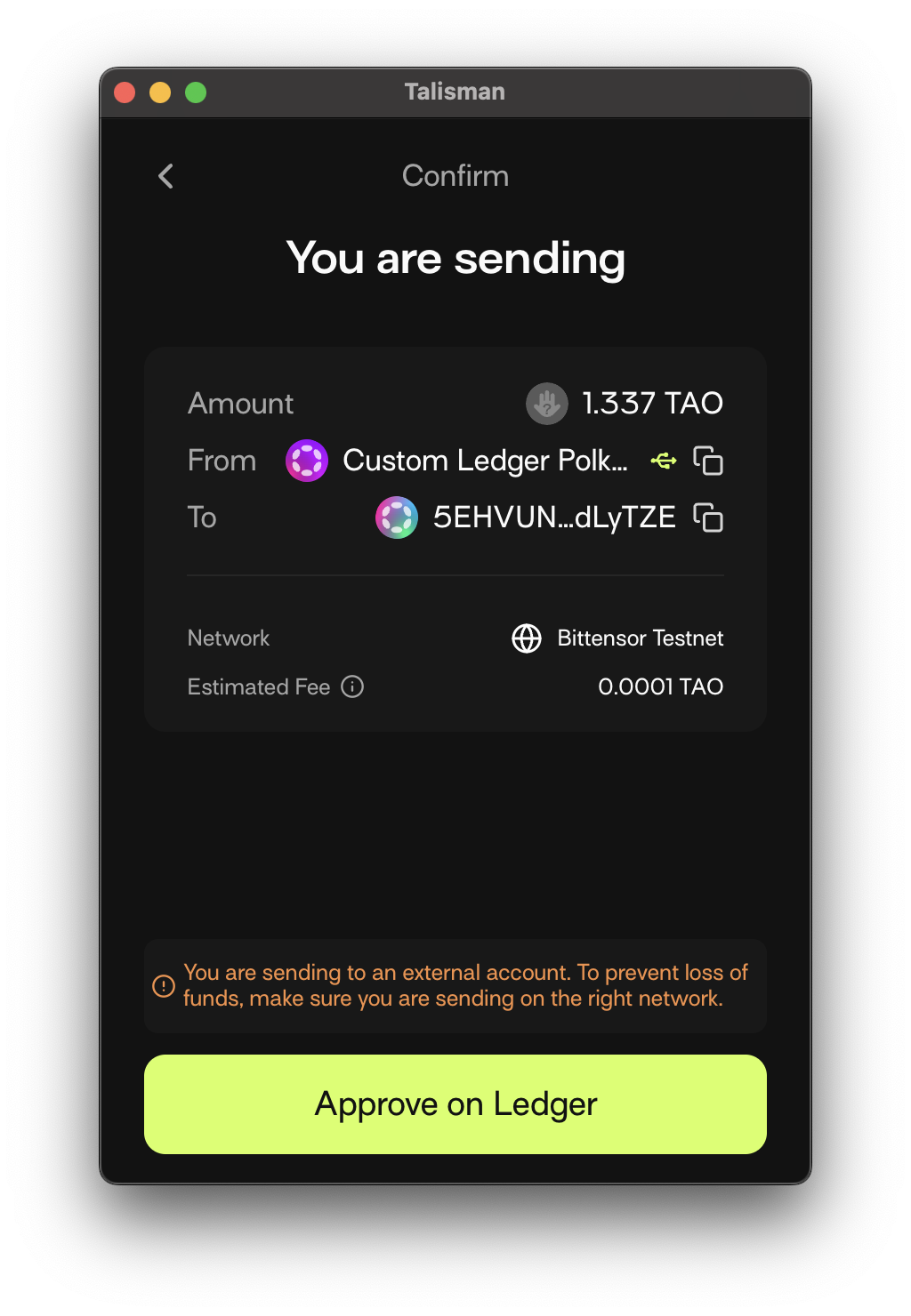
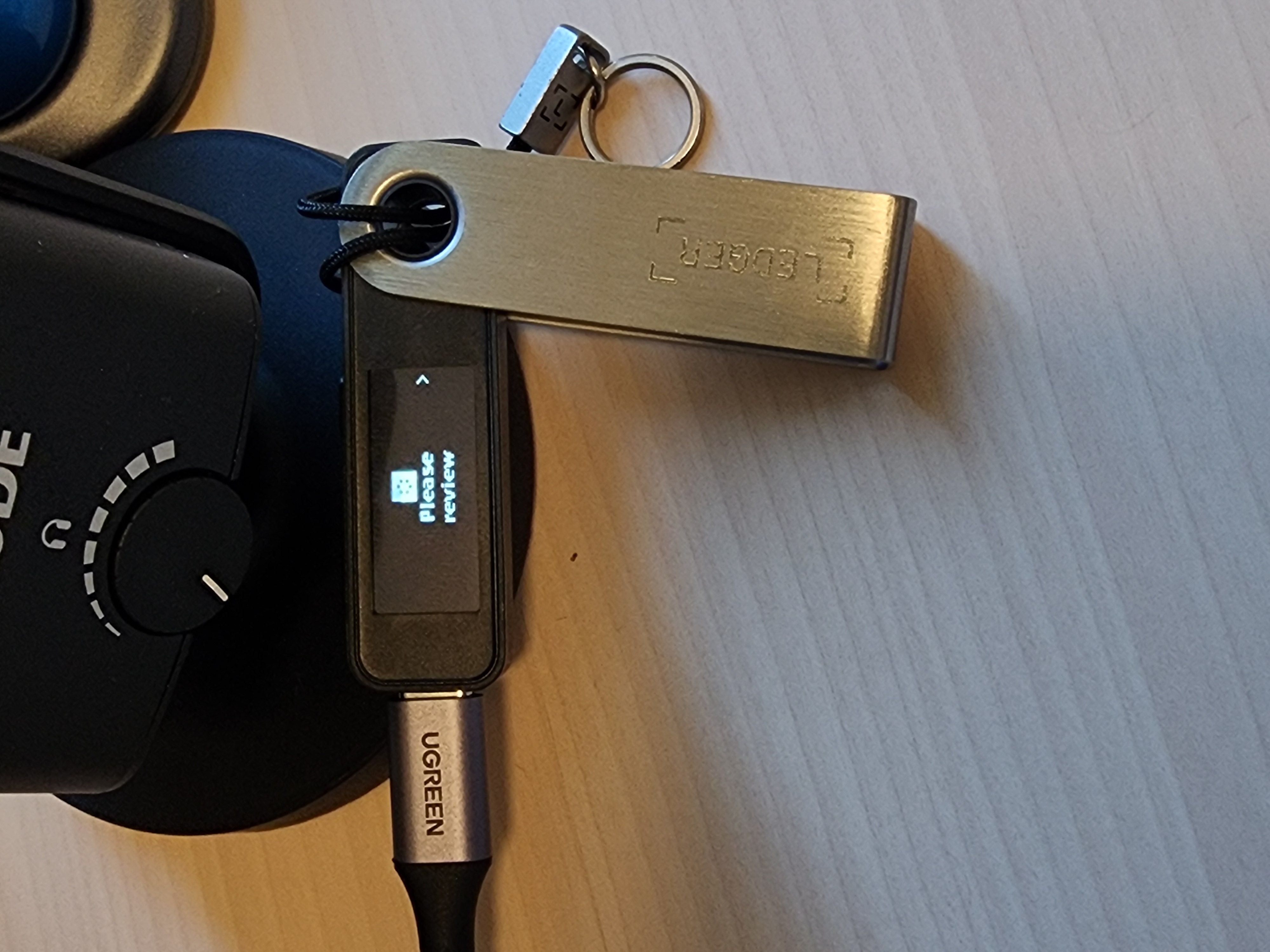
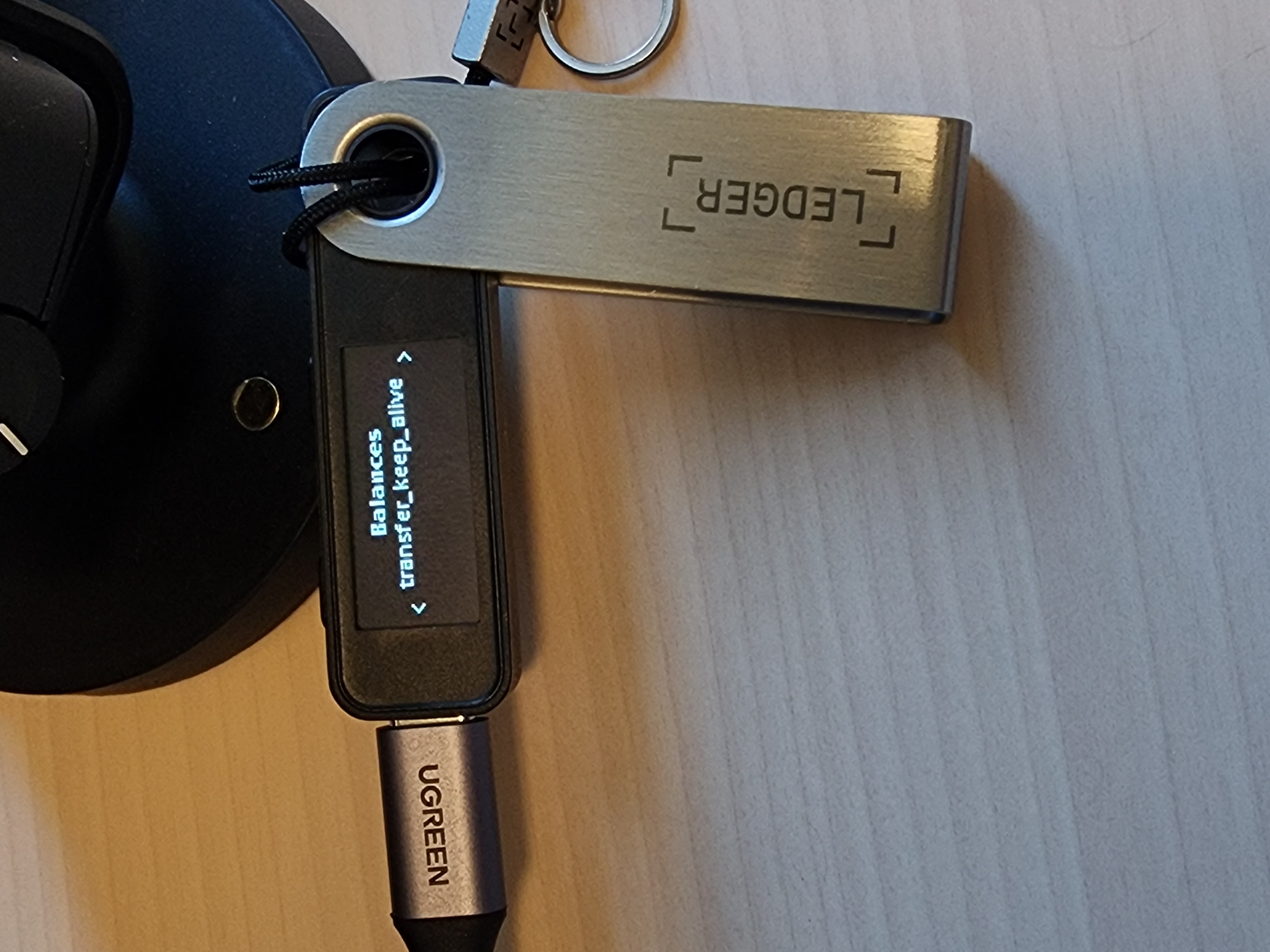
The below steps require you to verify on the Ledger device screen.
- On your Ledger device screen, verify the transaction details are as expected. Then select Approve on the device (or Reject if you want to cancel).
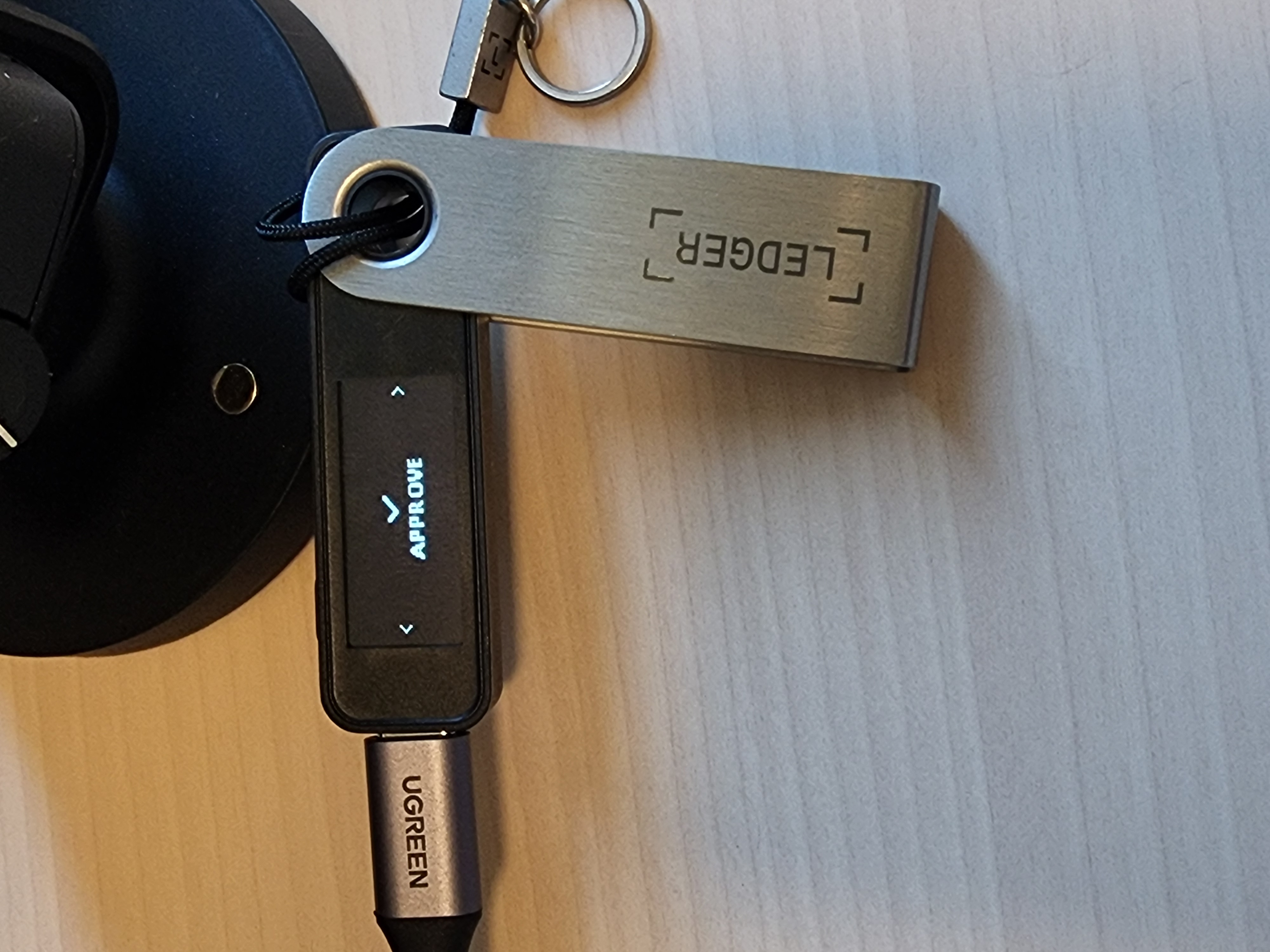
- Finished! Your TAO has been sent.
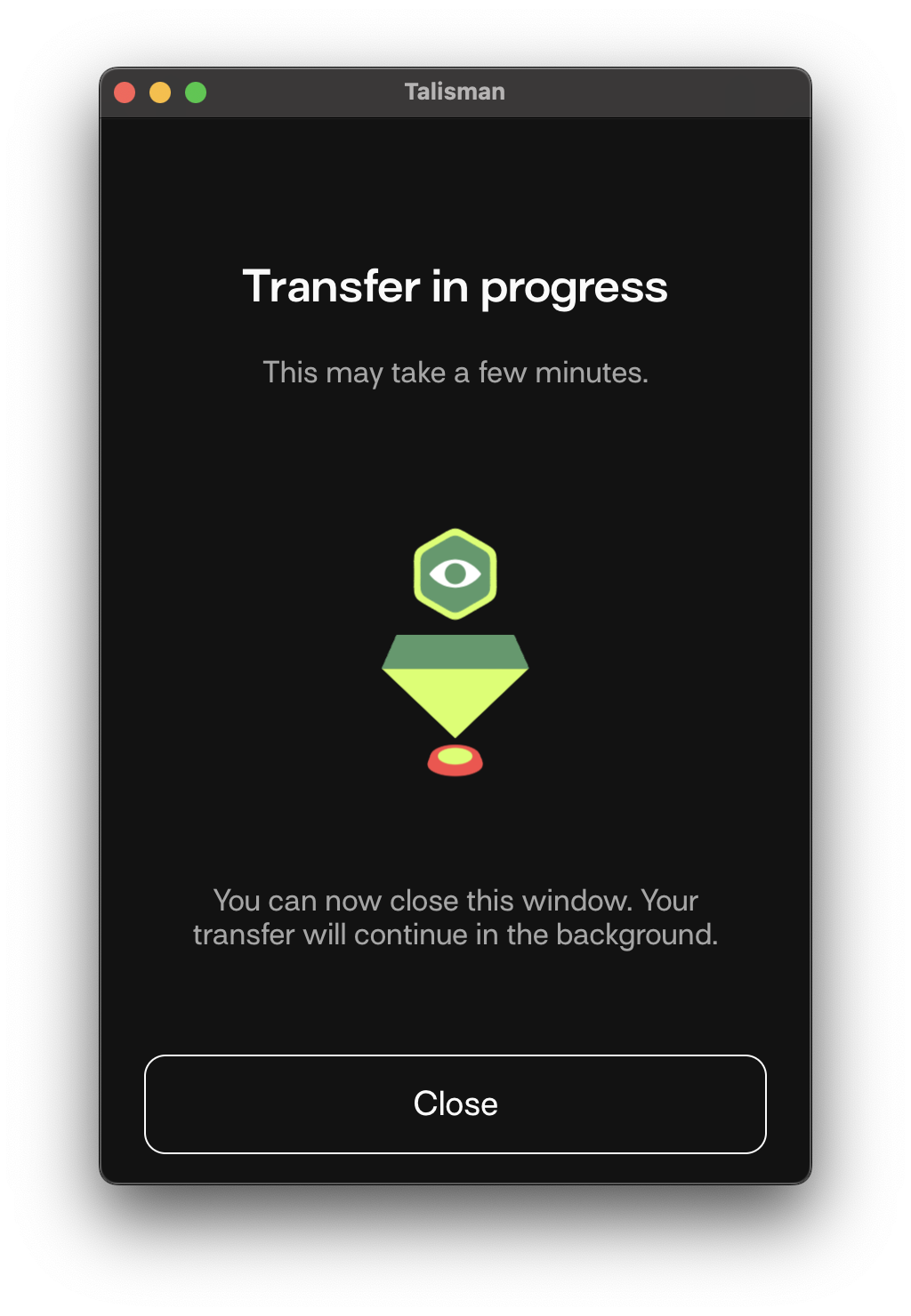
Copying TAO address from Ledger device
While using any crypto wallet, you might need to bring over your Ledger device's TAO address to this wallet. Follow the below steps.
- From your Talisman Wallet app, drop-down on All Accounts and select the Ledger account.
- Select Copy.
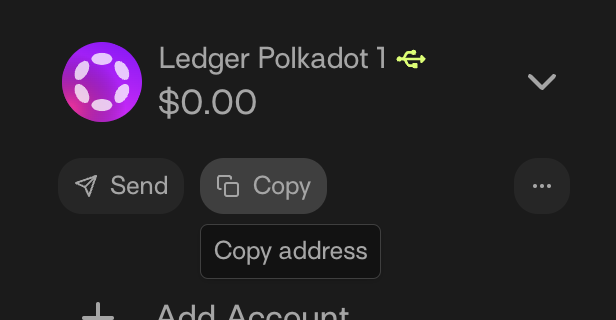
- Search for Bittensor network and click the Copy to clipboard button under Bittensor.
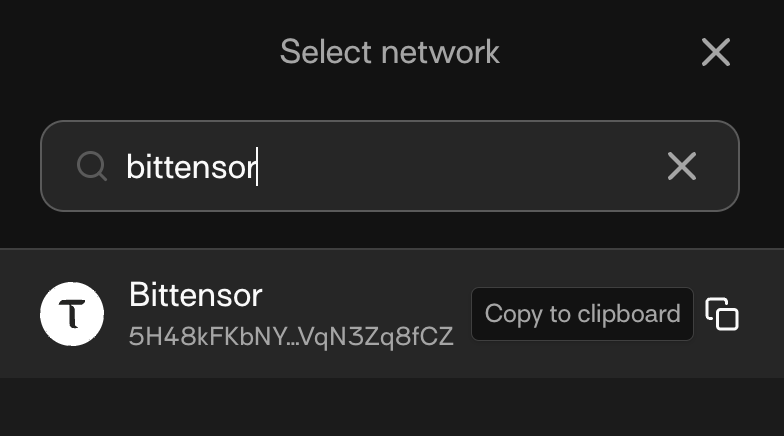
You have successfully copied the TAO address on the Ledger hardware wallet to the clipboard. You can then paste this TAO address into any crypto wallet you use.